Keyboard shortcuts
This page lists every shortcut Wymark binds, grouped as the in-app reference groups them. Press ⇧⌘? in the app (or open Help > Keyboard Shortcuts) for the same tables with the chords that apply right now. A chord marked Formatted view has no source-view equivalent – there you type the markdown.
The review loop
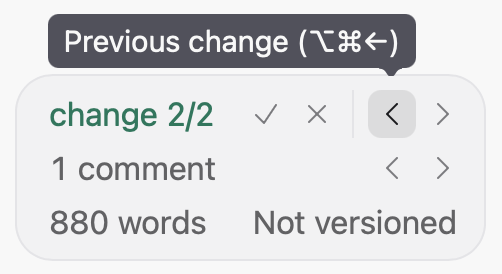
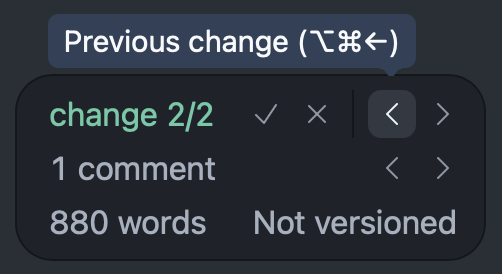
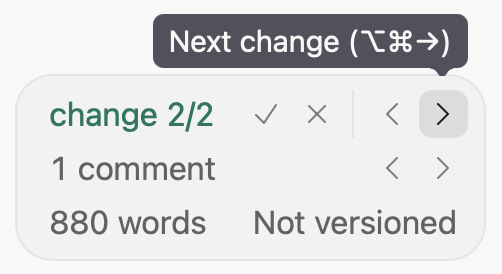
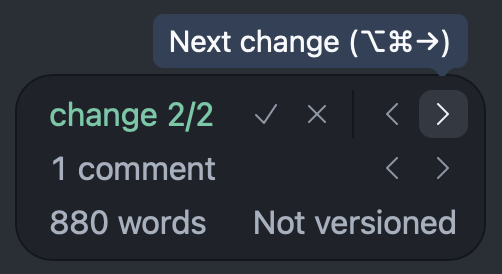
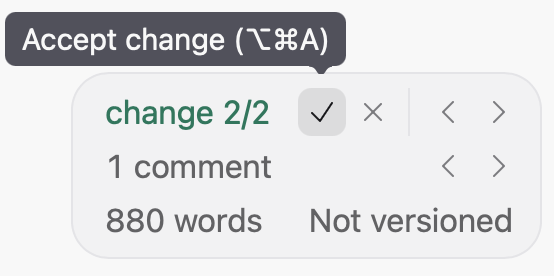
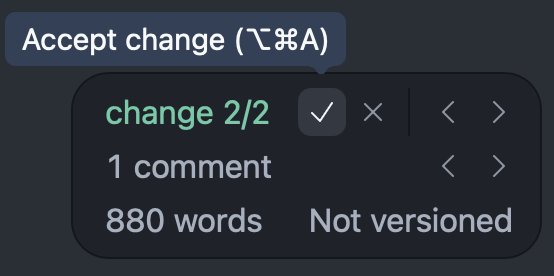
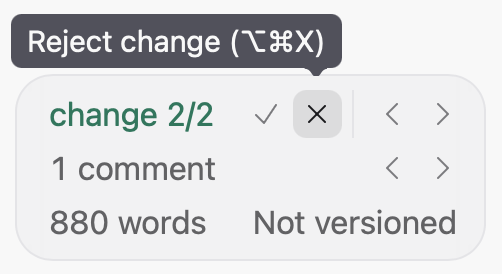
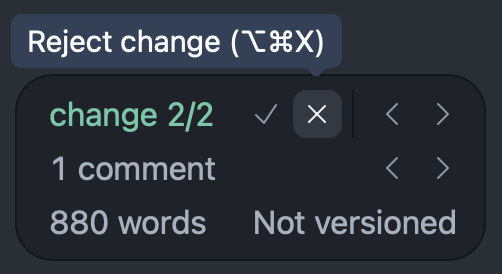
⇧⌘E or  in the ribbon shows the changes. The status chip at the bottom right in the editor steps through them, and lets you accept or reject each one. Hover a button for its key:
- Accept
 and reject
  move on to the next change.
- Finishing a round (Accept all
 in the ribbon, or deciding the last change) saves the result as a version by itself. It shows as Accepted or Resolved in the Versions panel. If you rejected everything there is nothing new to save.
- The second row of the chip steps through comments the same way:
⌃⌘→ and ⌃⌘←.
- Stepping to a change does not move your caret.
⌘S saves a version at any time. The file itself is always auto-saved to disk.
All review keys are in the Review table below.
Text style
| Shortcut |
Does |
⇧⌘X |
Strikethrough (Formatted view) |
⌘B |
Bold (Formatted view) |
⌘I |
Italic (Formatted view) |
⌘E |
Inline code (Formatted view) |
⇧↩ |
Line break inside a paragraph |
Paragraph style
| Shortcut |
Does |
⇧⌘B |
Blockquote (Formatted view) |
⌥⌘C |
Code block (Formatted view) |
⌘0 or ⌥⌘0 |
Paragraph |
⌘1 or ⌥⌘1 |
Heading 1 |
⌘2 or ⌥⌘2 |
Heading 2 |
⌘3 or ⌥⌘3 |
Heading 3 |
⌘4 or ⌥⌘4 |
Heading 4 |
⌘5 or ⌥⌘5 |
Heading 5 |
⌘6 or ⌥⌘6 |
Heading 6 |
Lists
| Shortcut |
Does |
⇧⌘7 |
Numbered list (Formatted view) |
⇧⌘8 |
Bulleted list (Formatted view) |
⇧⌘9 |
Task list (Formatted view) |
⇥ |
Indent a list item, or move to the next table cell |
⇧⇥ |
Outdent a list item, or move back a table cell |
⌘] |
Indent a list item (ANSI keyboards only) |
⌘[ |
Outdent a list item (ANSI keyboards only) |
Insert
| Shortcut |
Does |
⌘K |
Link (Formatted view) |
⌃⌘I |
Picture (Formatted view) |
⌥⌘T |
Table (Formatted view) |
⌥⌘B |
Maths block (Formatted view) |
Editing
| Shortcut |
Does |
⇧⌘V |
Paste as incoming change |
⌥↑ |
Move this block up (Formatted view) |
⌥↓ |
Move this block down (Formatted view) |
⌥↑ |
Move this line up (Source view) |
⌥↓ |
Move this line down (Source view) |
⌘/ |
Comment out the selected lines (Source view) |
⌥⇧A |
Comment out the selection (Source view) |
⌘Z |
Undo |
⇧⌘Z |
Redo |
Review
| Shortcut |
Does |
⇧⌘E |
Show or hide changes |
⌥⌘→ |
Next change |
⌥⌘← |
Previous change |
⌥⌘A |
Accept the change and move on |
⌥⌘X |
Discard the change and move on |
⌘S |
Save a version (the file itself saves as you type) |
| Shortcut |
Does |
⌃⌘→ |
Next comment |
⌃⌘← |
Previous comment |
⇧⌘C |
Show or hide comment cards |
⇧⌘M |
Show or collapse comment markers (Source view) |
⌥⌘M |
New comment |
⌘↩ |
Post a comment or reply |
Find
| Shortcut |
Does |
⇧⌘F |
Search across files |
⌘F |
Find and replace |
⌘D |
Select the next occurrence (Source view) |
⇧⌘L |
Select all occurrences (Source view) |
View
| Shortcut |
Does |
⇧⌘? or ⇧⌘+ |
Keyboard shortcuts |
⌘= or ⌘+ |
Zoom in |
⌘- |
Zoom out |
⌘R |
Formatted or source view |
⌥⌘R |
Show or hide the format bar |
⌥⌘S |
Show or hide the side panel |
⇧⌘↩ |
Zoom this pane in or out |
⌘D or F8 |
Focus (Formatted view) |
⌘T or F9 |
Typewriter (Formatted view) |
⌃⇥ |
Next tab |
⌃⇧⇥ |
Previous tab |
⇧⌘T |
Reopen closed tab |
App
| Shortcut |
Does |
⌘, |
Settings |
F2 |
Rename this document |
⌘N |
New tab |
⌘Q |
Quit |
⇧⌘N |
New window |
⌘W |
Close window |
⌘M |
Minimise |
⌃⌘F |
Full screen |
# Keyboard shortcuts

This page lists every shortcut Wymark binds, grouped as the in-app reference groups them. Press `⇧⌘?` in the app (or open `Help > Keyboard Shortcuts`) for the same tables with the chords that apply right now. A chord marked *Formatted view* has no source-view equivalent -- there you type the markdown.

## The review loop

`⇧⌘E` or <img src="01-keyboard-shortcuts-assets/eye-icon.svg" alt="eye icon" width="18"> in the ribbon shows the changes. The status chip at the bottom right in the editor steps through them, and lets you accept or reject each one. Hover a button for its key:

<div class="docs-grid">
  <figure class="docs-shot">
    <img class="docs-shot-light" src="01-keyboard-shortcuts-assets/review-chip-previous-light.png" width="251"
         alt="The status chip with the pointer on its Previous change button, and the tooltip Previous change (Option-Command-Left).">
    <img class="docs-shot-dark" src="01-keyboard-shortcuts-assets/review-chip-previous-dark.png" width="251"
         alt="The same in dark mode.">
  </figure>
  <figure class="docs-shot">
    <img class="docs-shot-light" src="01-keyboard-shortcuts-assets/review-chip-next-light.png" width="251"
         alt="The status chip with the pointer on its Next change button, and the tooltip Next change (Option-Command-Right).">
    <img class="docs-shot-dark" src="01-keyboard-shortcuts-assets/review-chip-next-dark.png" width="251"
         alt="The same in dark mode.">
  </figure>
  <figure class="docs-shot">
    <img class="docs-shot-light" src="01-keyboard-shortcuts-assets/review-chip-accept-light.png" width="277"
         alt="The status chip with the pointer on its Accept change button, and the tooltip Accept change (Option-Command-A).">
    <img class="docs-shot-dark" src="01-keyboard-shortcuts-assets/review-chip-accept-dark.png" width="277"
         alt="The same in dark mode.">
  </figure>
  <figure class="docs-shot">
    <img class="docs-shot-light" src="01-keyboard-shortcuts-assets/review-chip-reject-light.png" width="251"
         alt="The status chip with the pointer on its Reject change button, and the tooltip Reject change (Option-Command-X).">
    <img class="docs-shot-dark" src="01-keyboard-shortcuts-assets/review-chip-reject-dark.png" width="251"
         alt="The same in dark mode.">
  </figure>
</div>

- Accept <img src="01-keyboard-shortcuts-assets/accept-icon.svg" alt="accept icon" width="18"> and reject <img src="01-keyboard-shortcuts-assets/reject-icon.svg" alt="reject icon" width="18"> move on to the next change.
- Finishing a round (_Accept all_ <img src="01-keyboard-shortcuts-assets/accept-all-color-icon.svg" alt="Accept all icon" width="18"> in the ribbon, or deciding the last change) saves the result as a version by itself. It shows as *Accepted* or *Resolved* in the Versions panel. If you rejected everything there is nothing new to save.
- The second row of the chip steps through comments the same way: `⌃⌘→` and `⌃⌘←`.
- Stepping to a change does not move your caret.
- `⌘S` saves a version at any time. The file itself is always auto-saved to disk.

All review keys are in the [Review](#review) table below.

<!-- shortcuts:generated:start -->

## Text style

| Shortcut | Does |
| --- | --- |
| `⇧⌘X` | Strikethrough *(Formatted view)* |
| `⌘B` | Bold *(Formatted view)* |
| `⌘I` | Italic *(Formatted view)* |
| `⌘E` | Inline code *(Formatted view)* |
| `⇧↩` | Line break inside a paragraph |

## Paragraph style

| Shortcut | Does |
| --- | --- |
| `⇧⌘B` | Blockquote *(Formatted view)* |
| `⌥⌘C` | Code block *(Formatted view)* |
| `⌘0` or `⌥⌘0` | Paragraph |
| `⌘1` or `⌥⌘1` | Heading 1 |
| `⌘2` or `⌥⌘2` | Heading 2 |
| `⌘3` or `⌥⌘3` | Heading 3 |
| `⌘4` or `⌥⌘4` | Heading 4 |
| `⌘5` or `⌥⌘5` | Heading 5 |
| `⌘6` or `⌥⌘6` | Heading 6 |

## Lists

| Shortcut | Does |
| --- | --- |
| `⇧⌘7` | Numbered list *(Formatted view)* |
| `⇧⌘8` | Bulleted list *(Formatted view)* |
| `⇧⌘9` | Task list *(Formatted view)* |
| `⇥` | Indent a list item, or move to the next table cell |
| `⇧⇥` | Outdent a list item, or move back a table cell |
| `⌘]` | Indent a list item *(ANSI keyboards only)* |
| `⌘[` | Outdent a list item *(ANSI keyboards only)* |

## Insert

| Shortcut | Does |
| --- | --- |
| `⌘K` | Link *(Formatted view)* |
| `⌃⌘I` | Picture *(Formatted view)* |
| `⌥⌘T` | Table *(Formatted view)* |
| `⌥⌘B` | Maths block *(Formatted view)* |

## Editing

| Shortcut | Does |
| --- | --- |
| `⇧⌘V` | Paste as incoming change |
| `⌥↑` | Move this block up *(Formatted view)* |
| `⌥↓` | Move this block down *(Formatted view)* |
| `⌥↑` | Move this line up *(Source view)* |
| `⌥↓` | Move this line down *(Source view)* |
| `⌘/` | Comment out the selected lines *(Source view)* |
| `⌥⇧A` | Comment out the selection *(Source view)* |
| `⌘Z` | Undo |
| `⇧⌘Z` | Redo |

## Review

| Shortcut | Does |
| --- | --- |
| `⇧⌘E` | Show or hide changes |
| `⌥⌘→` | Next change |
| `⌥⌘←` | Previous change |
| `⌥⌘A` | Accept the change and move on |
| `⌥⌘X` | Discard the change and move on |
| `⌘S` | Save a version *(the file itself saves as you type)* |

## Comments

| Shortcut | Does |
| --- | --- |
| `⌃⌘→` | Next comment |
| `⌃⌘←` | Previous comment |
| `⇧⌘C` | Show or hide comment cards |
| `⇧⌘M` | Show or collapse comment markers *(Source view)* |
| `⌥⌘M` | New comment |
| `⌘↩` | Post a comment or reply |

## Find

| Shortcut | Does |
| --- | --- |
| `⇧⌘F` | Search across files |
| `⌘F` | Find and replace |
| `⌘D` | Select the next occurrence *(Source view)* |
| `⇧⌘L` | Select all occurrences *(Source view)* |

## View

| Shortcut | Does |
| --- | --- |
| `⇧⌘?` or `⇧⌘+` | Keyboard shortcuts |
| `⌘=` or `⌘+` | Zoom in |
| `⌘-` | Zoom out |
| `⌘R` | Formatted or source view |
| `⌥⌘R` | Show or hide the format bar |
| `⌥⌘S` | Show or hide the side panel |
| `⇧⌘↩` | Zoom this pane in or out |
| `⌘D` or `F8` | Focus *(Formatted view)* |
| `⌘T` or `F9` | Typewriter *(Formatted view)* |
| `⌃⇥` | Next tab |
| `⌃⇧⇥` | Previous tab |
| `⇧⌘T` | Reopen closed tab |

## App

| Shortcut | Does |
| --- | --- |
| `⌘,` | Settings |
| `F2` | Rename this document |
| `⌘N` | New tab |
| `⌘Q` | Quit |
| `⇧⌘N` | New window |
| `⌘W` | Close window |
| `⌘M` | Minimise |
| `⌃⌘F` | Full screen |

<!-- shortcuts:generated:end -->