On this page
Lists, tables and blocks
Each section gives the syntax in one example, links to the full syntax, and says what Wymark does with it. Where it is on the toolbar and its shortcut are in the constructs table.
Lists
- A bullet
    - Nested
1. A number
- [ ] A task
- [x] A done task
Full syntax: lists and task lists on markdownlang.com.
- Type
-,*,+,1.or1)at the start of a line. The file gets the marker you typed. A list already in a file is never re-marked. - The toolbar and pasting use
-and.. Continuing a list keeps its marker. - The list buttons toggle: paragraph to list and back. Over a selection they make one list. Bulleted and numbered apply to the whole list; the task checkbox applies to the item.
⇥and⇧⇥indent and outdent an item.- Delete the blank line between two lists of the same kind and they become one list.
- An empty item is a bare marker in the file.
Tables
| Name  | Role   |
| ----- | ------ |
| Ada   | Design |
| Grace | Code   |
| Name | Role |
|---|---|
| Ada | Design |
| Grace | Code |
Full syntax: tables on markdownlang.com.
| To | Do |
|---|---|
| Insert | The toolbar’s size grid, or ⌥⌘T. |
| Move between cells | ⇥ and ⇧⇥. ⇥ in the last cell adds a row. |
| Add a row or column | The buttons that appear when you hover the table’s edges. |
| Delete a row, a column or the table; align a column | Right-click a cell > Table. |
- A line break inside a cell is written as
<br>. - Column alignment from the dashes row (
:---,:---:,---:) is honoured. - Rows and columns cannot be dragged to reorder.
Quotes and alerts
> A quote.

> [!NOTE]
> An alert.
Note
An alert.
Full syntax: blockquotes on markdownlang.com.
- Block quote on the toolbar, or
⇧⌘B. - An alert is a quote whose first line is
[!NOTE],[!TIP],[!IMPORTANT],[!WARNING]or[!CAUTION], on a line of its own. In the file it is a plain blockquote. Insert > Alert, one entry per kind. - Put the caret on the marker’s line to edit the kind.
- An export gets an ordinary quotation with the literal marker.
Code blocks
```elixir
IO.puts("hello")
```
Full syntax: fenced code blocks on markdownlang.com.
- Insert > Code block, or
⌥⌘C. - A fence with a language tag is highlighted. Nothing inside a fence is read as markdown.
- A
mermaidfence is drawn as a diagram. See Diagrams. - Spelling is not checked inside a fence.
Dividers
---
- Insert > Divider.
- Three or more
-,*or_on a line of their own. The spelling you type is kept.
Moving a block
⌥↑ and ⌥↓ move the block the caret is in: a paragraph, a list item inside its list, a whole list at its edge, a quote. Inside a code block they move lines and stop at the fence; a table row moves within its table. Nothing is pulled out of its container, and the opposite arrow undoes a move exactly. A list parked against a list of the same kind merges when you stop.
A comment that spans two blocks is dropped if you reorder those blocks. Undo brings it back.
# Lists, tables and blocks

Each section gives the syntax in one example, links to the full syntax, and says what Wymark does with it. Where it is on the toolbar and its shortcut are in the [constructs table](/docs/reference/markdown#constructs).

## Lists

```markdown
- A bullet
    - Nested
1. A number
- [ ] A task
- [x] A done task
```

Full syntax: [lists](https://www.markdownlang.com/basic/lists.html) and [task lists](https://www.markdownlang.com/extended/task-lists.html) on markdownlang.com.

- Type `- `, `* `, `+ `, `1. ` or `1) ` at the start of a line. The file gets the marker you typed. A list already in a file is never re-marked.
- The toolbar and pasting use `-` and `.`. Continuing a list keeps its marker.
- The list buttons toggle: paragraph to list and back. Over a selection they make one list. Bulleted and numbered apply to the whole list; the task checkbox applies to the item.
- `⇥` and `⇧⇥` indent and outdent an item.
- Delete the blank line between two lists of the same kind and they become one list.
- An empty item is a bare marker in the file.

## Tables

```markdown
| Name  | Role   |
| ----- | ------ |
| Ada   | Design |
| Grace | Code   |
```

| Name  | Role   |
| ----- | ------ |
| Ada   | Design |
| Grace | Code   |

Full syntax: [tables on markdownlang.com](https://www.markdownlang.com/extended/tables.html).

| To | Do |
| --- | --- |
| Insert | The toolbar's size grid, or `⌥⌘T`. |
| Move between cells | `⇥` and `⇧⇥`. `⇥` in the last cell adds a row. |
| Add a row or column | The buttons that appear when you hover the table's edges. |
| Delete a row, a column or the table; align a column | Right-click a cell > Table. |

- A line break inside a cell is written as `<br>`.
- Column alignment from the dashes row (`:---`, `:---:`, `---:`) is honoured.
- <!--wymark: {"author":"John Doe","time":"2026-10-09T21:06:05Z"}@@Tables should be improved soon, to also support this.-->Rows and columns cannot be dragged to reorder.<!--wymark-end-->

## Quotes and alerts

```markdown
> A quote.

> [!NOTE]
> An alert.
```

> [!NOTE]
> An alert.

Full syntax: [blockquotes on markdownlang.com](https://www.markdownlang.com/basic/blockquotes.html).

- Block quote on the toolbar, or `⇧⌘B`.
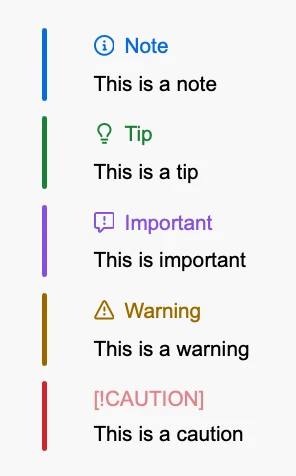
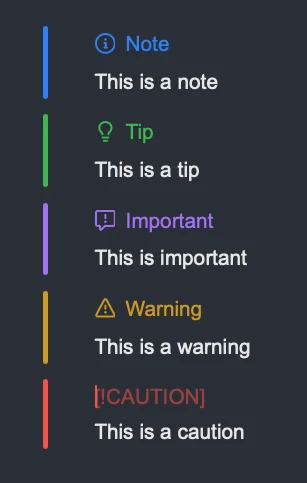
- An alert is a quote whose first line is `[!NOTE]`, `[!TIP]`, `[!IMPORTANT]`, `[!WARNING]` or `[!CAUTION]`, on a line of its own. In the file it is a plain blockquote. Insert > Alert, one entry per kind.
- Put the caret on the marker's line to edit the kind.
- An export gets an ordinary quotation with the literal marker.

<figure class="docs-shot">
  <img class="docs-shot-light" src="/images/alert-light.webp"
       alt="The five GitHub alerts as Wymark shows them: Note in blue, Tip in green, Important in purple, Warning in amber and Caution in red, each with its icon and a coloured bar down the left.">
  <img class="docs-shot-dark" src="/images/alert-dark.webp"
       alt="The same five alerts in dark mode.">
</figure>

## Code blocks

````markdown
```elixir
IO.puts("hello")
```
````

Full syntax: [fenced code blocks on markdownlang.com](https://www.markdownlang.com/extended/fenced-code-blocks.html).

- Insert > Code block, or `⌥⌘C`.
- A fence with a language tag is highlighted. Nothing inside a fence is read as markdown.
- A `mermaid` fence is drawn as a diagram. See [Diagrams](/docs/reference/diagrams).
- Spelling is not checked inside a fence.

## Dividers

```markdown
---
```

- Insert > Divider.
- Three or more `-`, `*` or `_` on a line of their own. The spelling you type is kept.

## Moving a block

`⌥↑` and `⌥↓` move the block the caret is in: a paragraph, a list item inside its list, a whole list at its edge, a quote. Inside a code block they move lines and stop at the fence; a table row moves within its table. Nothing is pulled out of its container, and the opposite arrow undoes a move exactly. A list parked against a list of the same kind merges when you stop.

A comment that spans two blocks is dropped if you reorder those blocks. Undo brings it back.